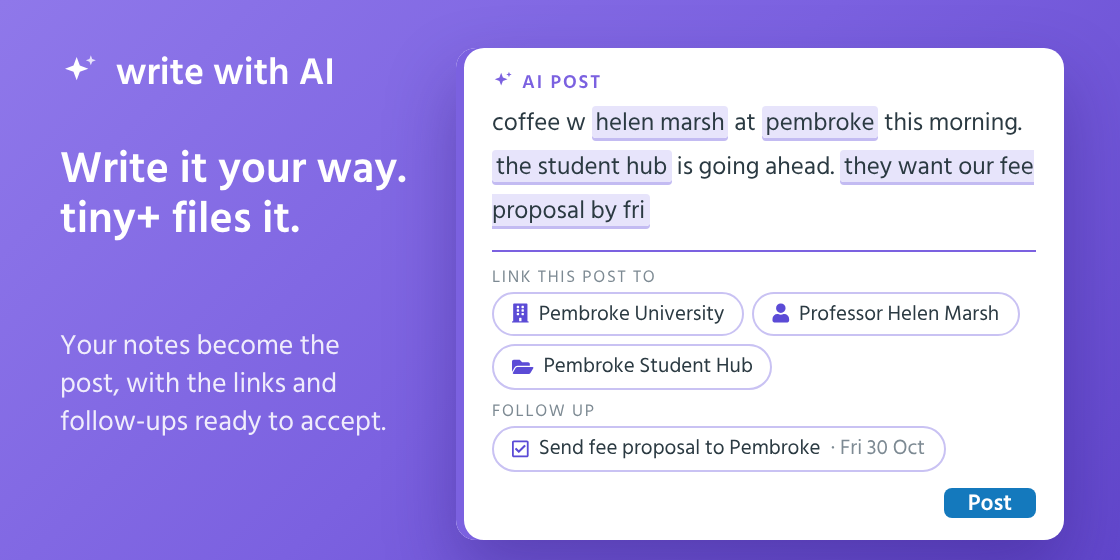
The most useful thing in a CRM is what was said at the meeting. It’s also the thing nobody has time to type up properly. Write with AI lets you write it as notes, and does the filing for you.
Write it the way you’d say it
Click Write with AI in the post box and type what happened. Notes are fine:
“coffee w helen marsh at pembroke this morning. the student hub is going ahead, approx $14m. they want our fee proposal by fri. tom to join the briefing workshop tues 10am”
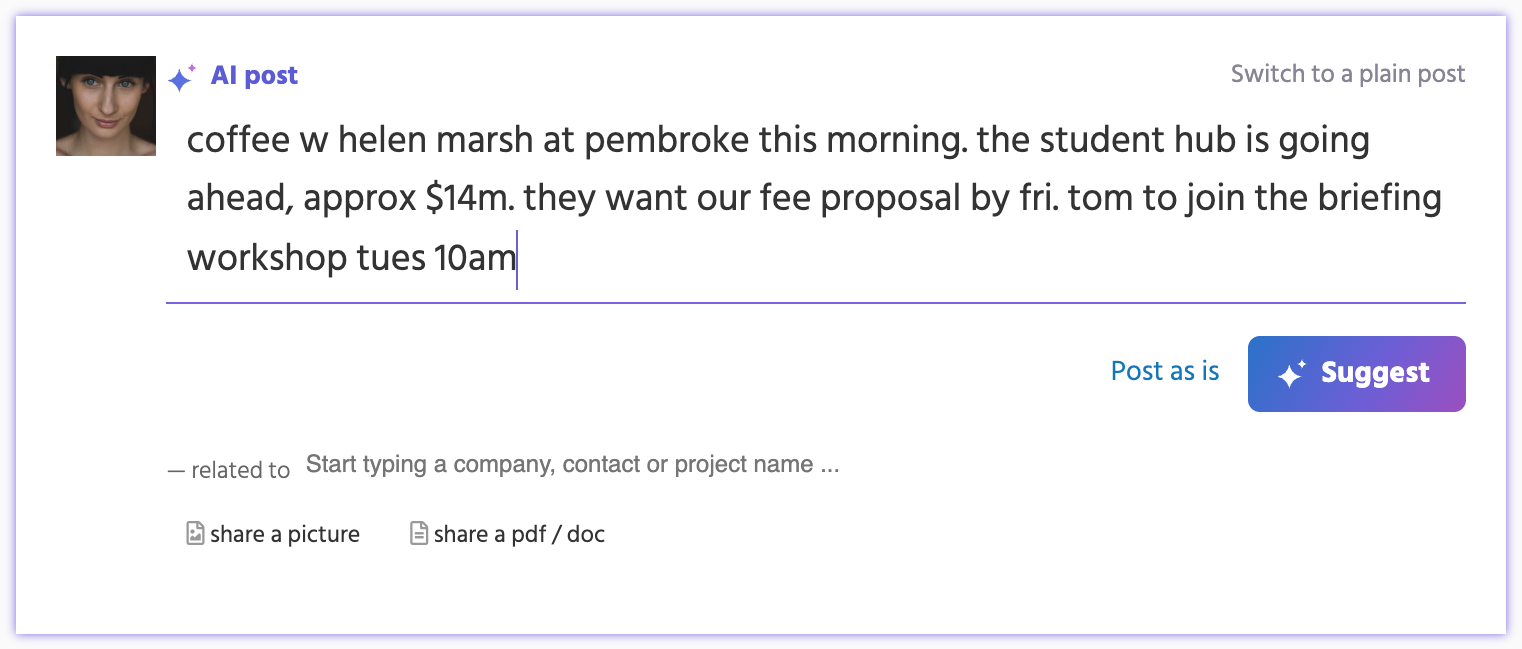
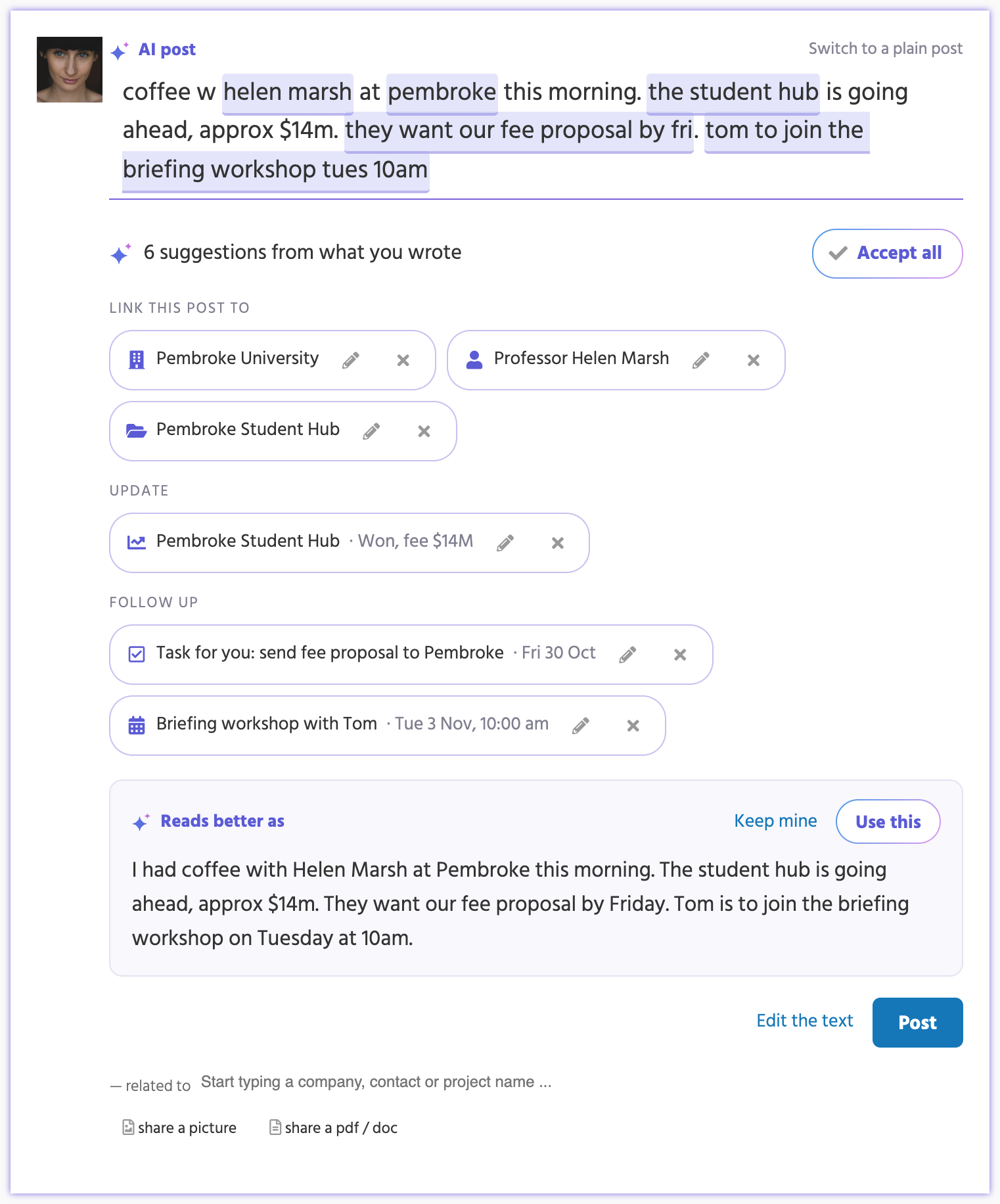
Click Suggest. tiny+ reads it, marks the words it recognises, and suggests what goes with the post.
What it suggests
- Link this post to the companies, contacts and projects you mention.
- Add to tiny+ someone you’ve just met and the company they’re from, or a project you’ve just heard of.
- Tag a record with your own tags, when the post says what they do.
- Update a project’s stage and fee, or count a catch-up as the follow-up due on a relationship plan.
- Follow up with a task for you or a colleague, or a meeting on its day and time. “Keen to catch up in a few weeks” becomes a task due three weeks from today.
- Reads better as: a tidier version of your words, when they read like notes.
Nothing changes until you post
Click a suggestion to accept it, the pencil to change it, or the × to drop it. Point at one to see the words it came from. Accept all takes the lot.
When you click Post, the new records are added, the post goes up on everything you linked, and each change you accepted is made as if you had made it yourself. A post that uses the tidier wording says “reworded with AI” beside its date and keeps what you typed, so you can put your own words back.
What Claude sees
Claude sees what you typed, with your team members’ names, your project stages and your tags. It never sees your records: tiny+ looks up the companies, contacts and projects you mention itself, and checks every suggestion against your own words before showing it. A confidential note is never read by AI.
Write with AI is for team members with an AI licence. An account admin switches it on under Account Settings → AI Usage.